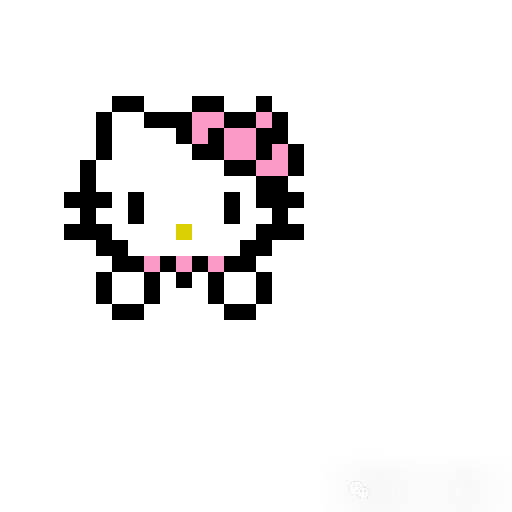
像素画是一种独特的视觉表现形式,以其复古的风格和简洁的设计吸引了众多爱好者。本文将介绍如何使用 HTML、CSS 和 JavaScript 创建一个像素画编辑器,支持基本的绘画、撤销/恢复、网格控制等功能。效果演示
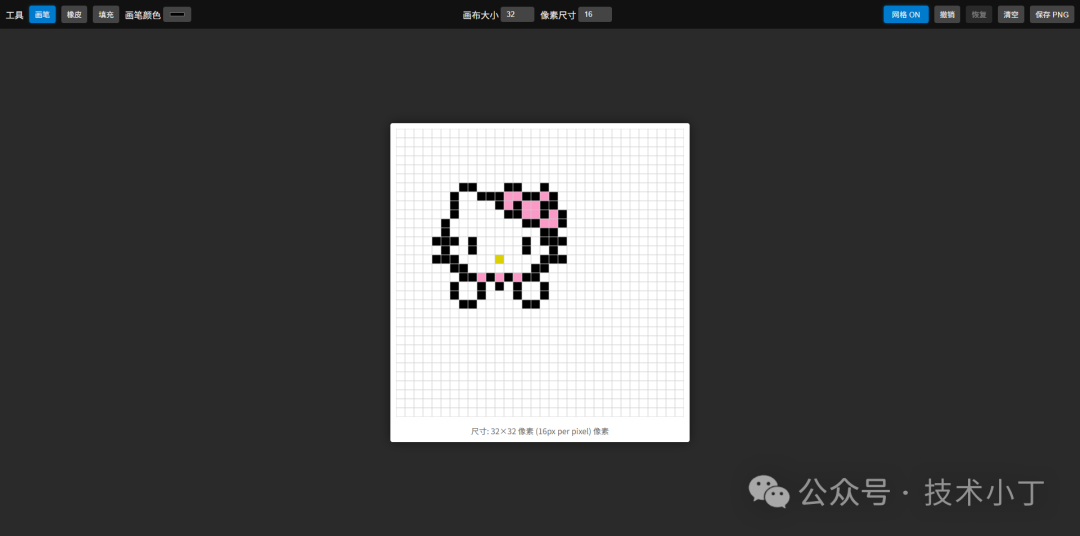
本编辑器提供了直观易用的操作界面,主要包括工具栏和画布两个区域:
页面结构
页面采用经典的垂直布局,主要分为两个区域:工具栏和主绘图区。
工具栏
工具栏包含多个交互元素,允许用户选择不同工具、设置颜色及参数,并执行特定动作,如撤销、清空等。<div id="toolbar"> <div class="toolbar-group"> <label>工具</label> <button id="penTool" class="tool-btn btn-active" data-tool="pen">画笔</button> <button id="eraserTool" class="tool-btn" data-tool="eraser">橡皮</button> <button id="fillTool" class="tool-btn" data-tool="fill">填充</button> <label>画笔颜色 <input type="color" id="color" value="#000000"/> </label> </div> <div class="toolbar-group"> <label>画布大小 <input type="number" id="gridSize" value="32" min="8" max="128" style="width:60px"/> </label> <label>像素尺寸 <input type="number" id="pixelSize" value="16" min="4" max="40" style="width:60px"/> </label> </div> <div class="toolbar-group"> <button id="gridToggle" class="btn-active">网格 ON</button> <button id="undoBtn" class="btn-disabled">撤销</button> <button id="redoBtn" class="btn-disabled">恢复</button> <button id="clearBtn">清空</button> <button id="saveBtn">保存 PNG</button> </div></div>
主绘图区域
主绘图区域由两个 <canvas> 元素组成:主画布用于绘制图像内容;另一个透明画布专门用来显示网格线,避免干扰实际绘画体验。<div id="main"> <div id="canvasWrap"> <div id="canvasContainer"> <canvas id="canvas"></canvas> <canvas id="grid"></canvas> </div> <div id="canvasInfo">尺寸: <span id="sizeInfo">32×32</span> 像素</div> </div></div>
核心功能实现
状态管理
整个应用程序的状态被统一存储在一个名为 state 的对象中,涵盖了当前使用的工具类型、选定的颜色值、网格可见性标志位以及其他关键属性。这种集中式的管理模式有助于简化逻辑判断过程并提高维护效率。var state = { tool: 'pen', color: '#000000', gridSize: 32, pixelSize: 16, gridVisible: true, history: [], historyStep: -1};
初始化流程
程序启动后首先调用 init() 函数完成各项资源准备任务,包括设定初始画布尺寸、注册各类事件监听器等。function init() { resizeCanvas(); drawGrid(); updateButtonStates(); bindEvents(); setupToolButtons();}
画布尺寸调节与网格绘制
每当用户更改了“画布大小”或“像素尺寸”的数值时,都会触发对应输入框的 oninput 回调函数,进而重新计算新的宽高比例关系并对两个画布同时进行缩放更新。function resizeCanvas() { var ps = state.pixelSize; var gs = state.gridSize; var d = gs * ps; [canvas, gridCanvas].forEach(c => { c.width = c.height = d; c.style.width = c.style.height = d + 'px'; }); ctx.imageSmoothingEnabled = false; gtx.imageSmoothingEnabled = false; document.getElementById('sizeInfo').textContent = `${gs}×${gs} 像素 (${ps}px per pixel)`; ctx.clearRect(0, 0, canvas.width, canvas.height); pushHistory();}
function drawGrid() { gtx.clearRect(0, 0, gridCanvas.width, gridCanvas.height); if (!state.gridVisible) return; gtx.strokeStyle = '#ccc'; gtx.lineWidth = 1; var ps = state.pixelSize; var gs = state.gridSize; var canvasSize = gs * ps; for (var i = 0; i <= gs; i++) { var pos = i * ps; gtx.beginPath(); gtx.moveTo(pos, 0); gtx.lineTo(pos, canvasSize); gtx.stroke(); gtx.beginPath(); gtx.moveTo(0, pos); gtx.lineTo(canvasSize, pos); gtx.stroke(); }}
绘图核心逻辑
针对鼠标按下、移动、释放等行为分别绑定了相应的响应处理器,确保能够准确捕捉用户的每一次操作意图。例如,在启用画笔模式期间,只要检测到持续拖动的动作就会不断向目标位置填充指定色彩块。
而对于填充工具来说则更加复杂些,我们需借助 floodFill 算法来找出相连区域内所有相同颜色的像素点,并将其全部替换为目标色值。
function bindEvents() { canvas.addEventListener('mousedown', e => { drawing = true; strokeMade = false; var rect = canvas.getBoundingClientRect(); var x = e.clientX - rect.left; var y = e.clientY - rect.top; if (state.tool === 'pen') drawPixel(x, y, state.color); else if (state.tool === 'eraser') drawPixel(x, y, '#ffffff'); else if (state.tool === 'fill') { floodFill(x, y, state.color); drawing = false; } }); canvas.addEventListener('mousemove', e => { if (!drawing) return; var rect = canvas.getBoundingClientRect(); var x = e.clientX - rect.left; var y = e.clientY - rect.top; if (state.tool === 'pen') drawPixel(x, y, state.color); else if (state.tool === 'eraser') drawPixel(x, y, '#ffffff'); }); window.addEventListener('mouseup', () => { if (drawing && strokeMade) pushHistory(); drawing = false; }); canvas.addEventListener('mouseleave', () => { if (drawing && strokeMade) pushHistory(); drawing = false; });}
扩展建议
导入外部图片:允许用户载入已有素材作为底稿参考
本地持久化存储:利用 localStorage 将未完成的作品自动缓存起来防止意外丢失
调色板功能:提供常用颜色选择面板,方便快速更换颜色
增加更多绘图工具:如直线工具、矩形工具、圆形工具等形状绘制工具
完整代码
git地址:https://gitee.com/ironpro/hjdemo/blob/master/pixel-art/index.html<!DOCTYPE html><html lang="zh-CN"><head> <meta charset="utf-8" /> <title>像素画编辑器</title> <style> * { margin: 0; padding: 0; box-sizing: border-box; } body { background: #222; color: #eee; display: flex; flex-direction: column; height: 100vh; user-select: none; } #toolbar { display: flex; gap: 10px; padding: 10px; background: #111; align-items: center; flex-wrap: wrap; justify-content: space-between; box-shadow: 0 2px 5px rgba(0, 0, 0, 0.3); } .toolbar-group { display: flex; gap: 10px; align-items: center; flex-wrap: wrap; } #toolbar button, #toolbar input, #toolbar select { padding: 6px 10px; border: none; border-radius: 4px; background: #444; color: #eee; cursor: pointer; transition: all 0.2s ease; } #toolbar button:hover { background: #555; } #toolbar label { display: flex; align-items: center; gap: 4px; } .btn-active { background: #007acc !important; box-shadow: 0 0 5px rgba(0, 122, 204, 0.5); } .btn-disabled { opacity: 0.5; cursor: not-allowed; } .tool-btn { padding: 6px 10px; border: none; border-radius: 4px; background: #444; color: #eee; cursor: pointer; transition: all 0.2s ease; } .tool-btn:hover { background: #555; } .tool-btn.btn-active { background: #007acc !important; box-shadow: 0 0 5px rgba(0, 122, 204, 0.5); } #main { display: flex; flex: 1; overflow: hidden; padding: 10px; background: #2a2a2a; }
#canvasWrap { margin: auto; position: relative; background: #fff; box-shadow: 0 0 20px rgba(0, 0, 0, 0.5); border-radius: 4px; padding: 10px; } #canvasContainer { position: relative; display: inline-block; } #canvas { display: block; image-rendering: pixelated; image-rendering: crisp-edges; cursor: crosshair; } #grid { position: absolute; left: 0; top: 0; pointer-events: none; } #canvasInfo { text-align: center; margin-top: 10px; font-size: 14px; color: #666; } #gridToggle { width: 80px; text-align: center; } </style></head><body><div id="toolbar"> <div class="toolbar-group"> <label>工具</label> <button id="penTool" class="tool-btn btn-active" data-tool="pen">画笔</button> <button id="eraserTool" class="tool-btn" data-tool="eraser">橡皮</button> <button id="fillTool" class="tool-btn" data-tool="fill">填充</button> <label>画笔颜色 <input type="color" id="color" value="#000000"/> </label> </div> <div class="toolbar-group"> <label>画布大小 <input type="number" id="gridSize" value="32" min="8" max="128" style="width:60px"/> </label> <label>像素尺寸 <input type="number" id="pixelSize" value="16" min="4" max="40" style="width:60px"/> </label> </div> <div class="toolbar-group"> <button id="gridToggle" class="btn-active">网格 ON</button> <button id="undoBtn" class="btn-disabled">撤销</button> <button id="redoBtn" class="btn-disabled">恢复</button> <button id="clearBtn">清空</button> <button id="saveBtn">保存 PNG</button> </div></div>
<div id="main"> <div id="canvasWrap"> <div id="canvasContainer"> <canvas id="canvas"></canvas> <canvas id="grid"></canvas> </div> <div id="canvasInfo">尺寸: <span id="sizeInfo">32×32</span> 像素</div> </div></div>
<script> var state = { tool: 'pen', color: '#000000', gridSize: 32, pixelSize: 16, gridVisible: true, history: [], historyStep: -1 };
var canvas = document.getElementById('canvas'); var ctx = canvas.getContext('2d'); var gridCanvas = document.getElementById('grid'); var gtx = gridCanvas.getContext('2d'); function init() { resizeCanvas(); drawGrid(); updateButtonStates(); bindEvents(); setupToolButtons(); } window.onload = init; function setupToolButtons() { document.querySelectorAll('.tool-btn').forEach(btn => { btn.addEventListener('click', () => { document.querySelectorAll('.tool-btn').forEach(b => b.classList.remove('btn-active')); btn.classList.add('btn-active'); state.tool = btn.dataset.tool; }); }); } function resizeCanvas() { var ps = state.pixelSize; var gs = state.gridSize; var d = gs * ps; [canvas, gridCanvas].forEach(c => { c.width = c.height = d; c.style.width = c.style.height = d + 'px'; }); ctx.imageSmoothingEnabled = false; gtx.imageSmoothingEnabled = false; document.getElementById('sizeInfo').textContent = `${gs}×${gs} 像素 (${ps}px per pixel)`; ctx.clearRect(0, 0, canvas.width, canvas.height); pushHistory(); } function drawGrid() { gtx.clearRect(0, 0, gridCanvas.width, gridCanvas.height); if (!state.gridVisible) return; gtx.strokeStyle = '#ccc'; gtx.lineWidth = 1; var ps = state.pixelSize; var gs = state.gridSize; var canvasSize = gs * ps; for (var i = 0; i <= gs; i++) { var pos = i * ps; gtx.beginPath(); gtx.moveTo(pos, 0); gtx.lineTo(pos, canvasSize); gtx.stroke(); gtx.beginPath(); gtx.moveTo(0, pos); gtx.lineTo(canvasSize, pos); gtx.stroke(); } } function updateButtonStates() { document.getElementById('undoBtn').classList.toggle('btn-disabled', state.historyStep <= 0); document.getElementById('redoBtn').classList.toggle('btn-disabled', state.historyStep >= state.history.length - 1); } function pushHistory() { state.history = state.history.slice(0, state.historyStep + 1); state.history.push(ctx.getImageData(0, 0, canvas.width, canvas.height)); state.historyStep++; updateButtonStates(); }
function undo() { if (state.historyStep > 0) { state.historyStep--; redraw(); updateButtonStates(); } }
function redo() { if (state.historyStep < state.history.length - 1) { state.historyStep++; redraw(); updateButtonStates(); } }
function redraw() { ctx.putImageData(state.history[state.historyStep], 0, 0); } var drawing = false; var strokeMade = false;
function drawPixel(x, y, color) { var ps = state.pixelSize; var gx = Math.floor(x / ps) * ps; var gy = Math.floor(y / ps) * ps; ctx.fillStyle = color; ctx.fillRect(gx, gy, ps, ps); strokeMade = true; }
function floodFill(x, y, fillColor) { var img = ctx.getImageData(0, 0, canvas.width, canvas.height); var data = img.data; var ps = state.pixelSize; var gs = state.gridSize; var w = gs * ps; var startPos = (Math.floor(y / ps) * ps) * w + Math.floor(x / ps) * ps; var startR = data[startPos * 4]; var startG = data[startPos * 4 + 1]; var startB = data[startPos * 4 + 2]; var startA = data[startPos * 4 + 3]; var [r, g, b] = hexToRgb(fillColor); if (r === startR && g === startG && b === startB && startA === 255) return;
var stack = [[x, y]]; var seen = new Uint8Array(w * w);
function matches(px) { return data[px * 4] === startR && data[px * 4 + 1] === startG && data[px * 4 + 2] === startB && data[px * 4 + 3] === startA; } function pxIdx(x, y) { return y * w + x; }
while (stack.length) { var [cx, cy] = stack.pop(); var x1 = cx; while (x1 >= 0 && matches(pxIdx(x1, cy))) x1--; x1++; var spanUp = false, spanDown = false; for (var x2 = x1; x2 < w && matches(pxIdx(x2, cy)); x2++) { var idx = pxIdx(x2, cy); data[idx * 4] = r; data[idx * 4 + 1] = g; data[idx * 4 + 2] = b; data[idx * 4 + 3] = 255; seen[idx] = 1; if (!spanUp && cy > 0 && matches(pxIdx(x2, cy - 1)) && !seen[pxIdx(x2, cy - 1)]) { stack.push([x2, cy - 1]); spanUp = true; } else if (spanUp && cy > 0 && !matches(pxIdx(x2, cy - 1))) spanUp = false; if (!spanDown && cy < w - 1 && matches(pxIdx(x2, cy + 1)) && !seen[pxIdx(x2, cy + 1)]) { stack.push([x2, cy + 1]); spanDown = true; } else if (spanDown && cy < w - 1 && !matches(pxIdx(x2, cy + 1))) spanDown = false; } } ctx.putImageData(img, 0, 0); pushHistory(); }
function hexToRgb(hex) { var r = parseInt(hex.slice(1, 3), 16); var g = parseInt(hex.slice(3, 5), 16); var b = parseInt(hex.slice(5, 7), 16); return [r, g, b]; } function bindEvents() { canvas.addEventListener('mousedown', e => { drawing = true; strokeMade = false; var rect = canvas.getBoundingClientRect(); var x = e.clientX - rect.left; var y = e.clientY - rect.top; if (state.tool === 'pen') drawPixel(x, y, state.color); else if (state.tool === 'eraser') drawPixel(x, y, '#ffffff'); else if (state.tool === 'fill') { floodFill(x, y, state.color); drawing = false; } }); canvas.addEventListener('mousemove', e => { if (!drawing) return; var rect = canvas.getBoundingClientRect(); var x = e.clientX - rect.left; var y = e.clientY - rect.top; if (state.tool === 'pen') drawPixel(x, y, state.color); else if (state.tool === 'eraser') drawPixel(x, y, '#ffffff'); }); window.addEventListener('mouseup', () => { if (drawing && strokeMade) pushHistory(); drawing = false; }); canvas.addEventListener('mouseleave', () => { if (drawing && strokeMade) pushHistory(); drawing = false; }); } document.getElementById('color').oninput = e => state.color = e.target.value; document.getElementById('gridSize').oninput = e => { state.gridSize = +e.target.value; resizeCanvas(); drawGrid(); }; document.getElementById('pixelSize').oninput = e => { state.pixelSize = +e.target.value; resizeCanvas(); drawGrid(); }; document.getElementById('gridToggle').onclick = () => { state.gridVisible = !state.gridVisible; var gridBtn = document.getElementById('gridToggle'); gridBtn.textContent = '网格 ' + (state.gridVisible ? 'ON' : 'OFF'); gridBtn.classList.toggle('btn-active', state.gridVisible); drawGrid(); }; document.getElementById('undoBtn').onclick = undo; document.getElementById('redoBtn').onclick = redo; document.getElementById('clearBtn').onclick = () => { ctx.clearRect(0, 0, canvas.width, canvas.height); pushHistory(); }; document.getElementById('saveBtn').onclick = () => { var link = document.createElement('a'); link.download = 'pixel-art.png'; link.href = canvas.toDataURL(); link.click(); }; window.addEventListener('keydown', e => { if (e.ctrlKey && e.key === 'z') { e.preventDefault(); undo(); } if (e.ctrlKey && e.key === 'y') { e.preventDefault(); redo(); } });</script></body></html>
阅读原文:https://mp.weixin.qq.com/s/PB3Fll1o1yqBRi6yU1rzHw
该文章在 2026/1/29 10:46:43 编辑过




 400 186 1886